 Doc Summary

Occasionally, you might encounter file upload failures in Droplr. This guide will help you understand How to retrieve the file path and manage these incidents effectively.
Settings #
Correct configuration is crucial for minimizing upload failures. Follow these steps to ensure your settings are optimized:
- Open Droplr and go to the Settings menu.
- Check for any configuration options specific to your operating system and ensure they match your requirements.
- Ensure you have the latest version of Droplr installed for the best compatibility and performance.
Check Archive #
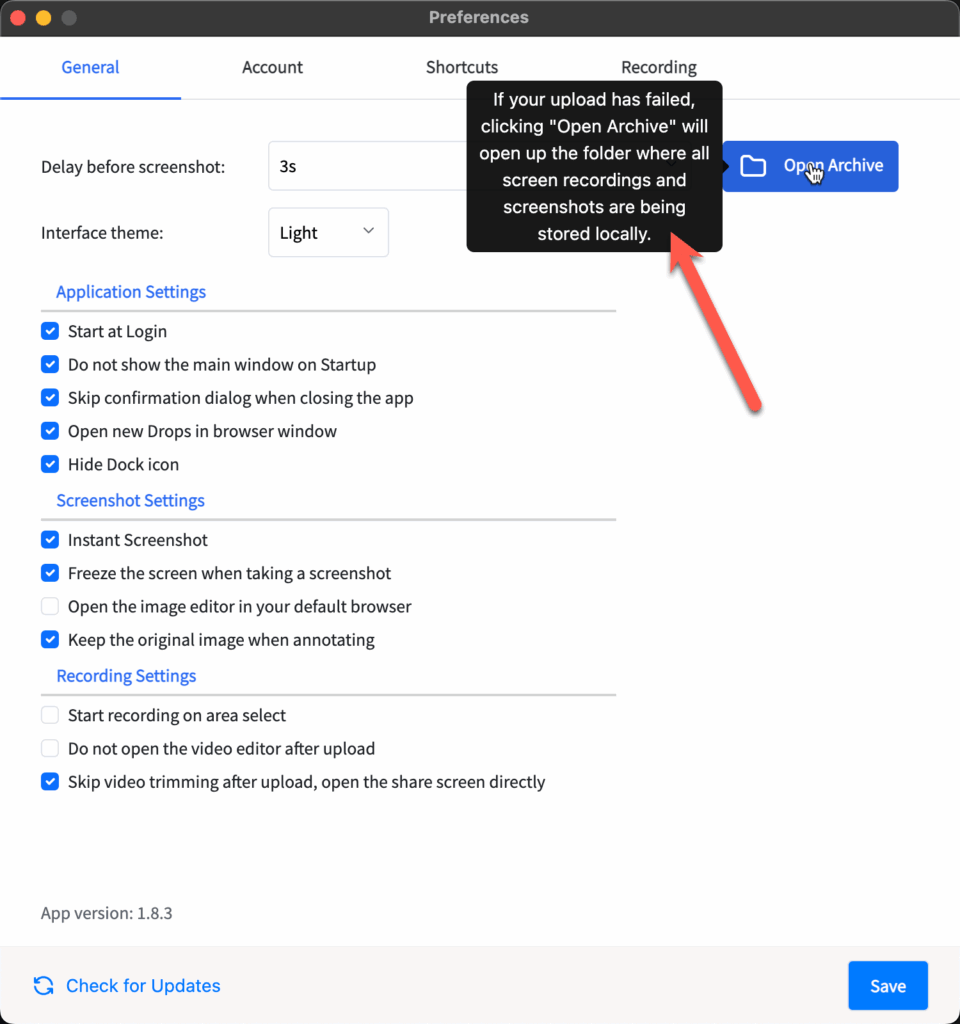
In the event of an upload failure, checking your archive can provide insight into the problem:
- Navigate to the Archive section in Droplr.
- Look for the file that failed to upload and click on it to view any error messages associated with the upload attempt.
- Take note of the file path listed in the error details. This information can be crucial for troubleshooting.
Conclusion #
By adjusting your settings and checking the archive, you can effectively manage and troubleshoot file upload failures. Always ensure your system and Droplr are updated to prevent such issues.


