Doc Summary

BetterDocs has a unique FAQ builder feature that allows you to easily add a FAQ section to your website’s documentation pages. To learn How to configure the FAQ builder in WordPress using BetterDocs, follow the guidelines.
How To Configure BetterDocs FAQ Builder In WordPress? #
Follow the steps below to create FAQs in WordPress using BetterDocs.
Step 1: Create New FAQ Groups #
Go to BetterDocs → FAQ Builder. Here you will see two options. To add a pre-built FAQ, click on the ‘Generate Sample FAQs’ button. A New section with three New FAQ groups will appear.
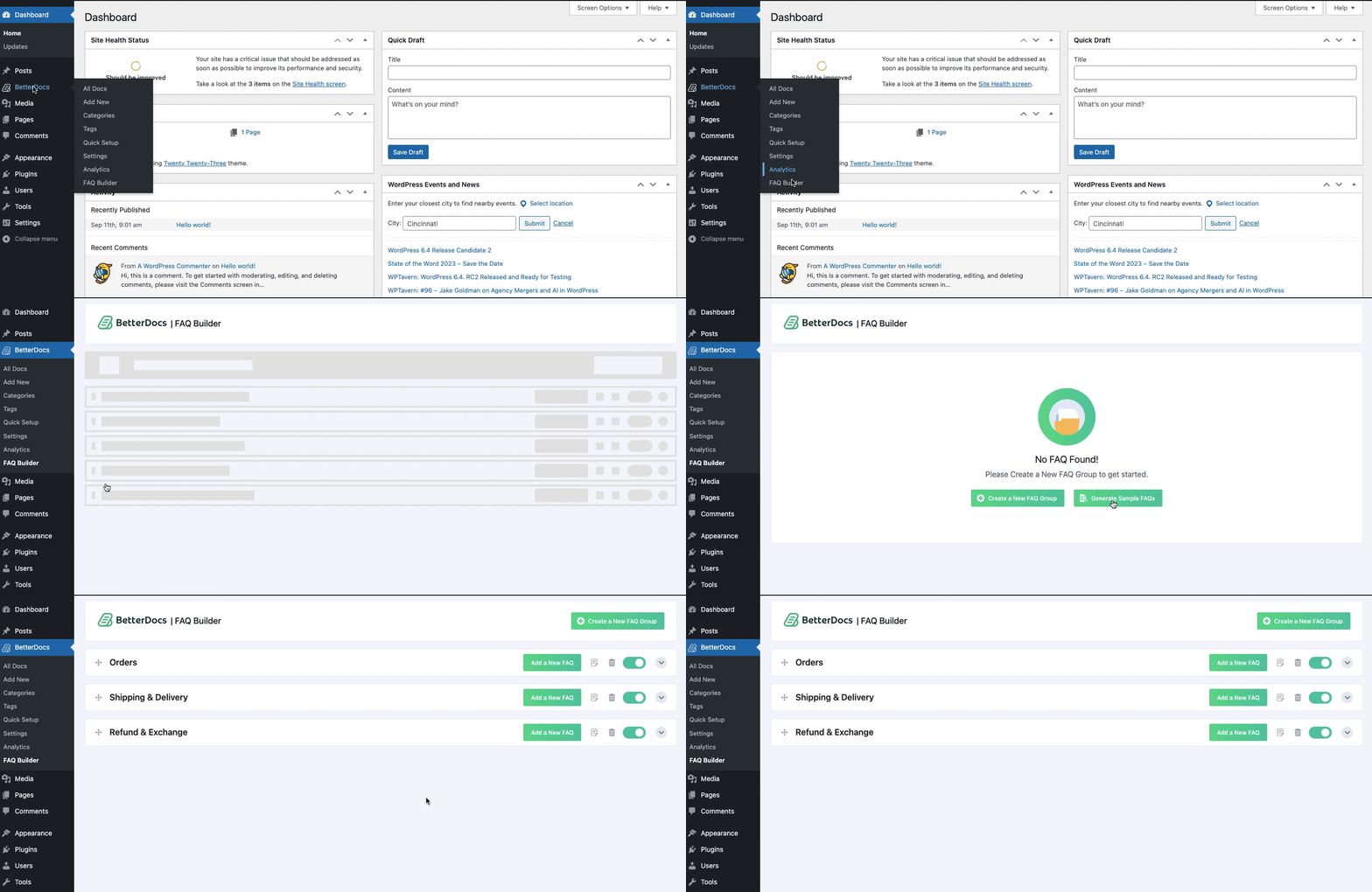
If you want to create a New FAQ group, click on the ‘Create A New FAQ’ button. Give the New group a suitable name you prefer in the ‘FAQ Group Title’ field and hit the ‘Create FAQ Group’ button. A New FAQ group will be added.

Each group contains a specific set of questions. You can add New questions to the specific group as many as needed.
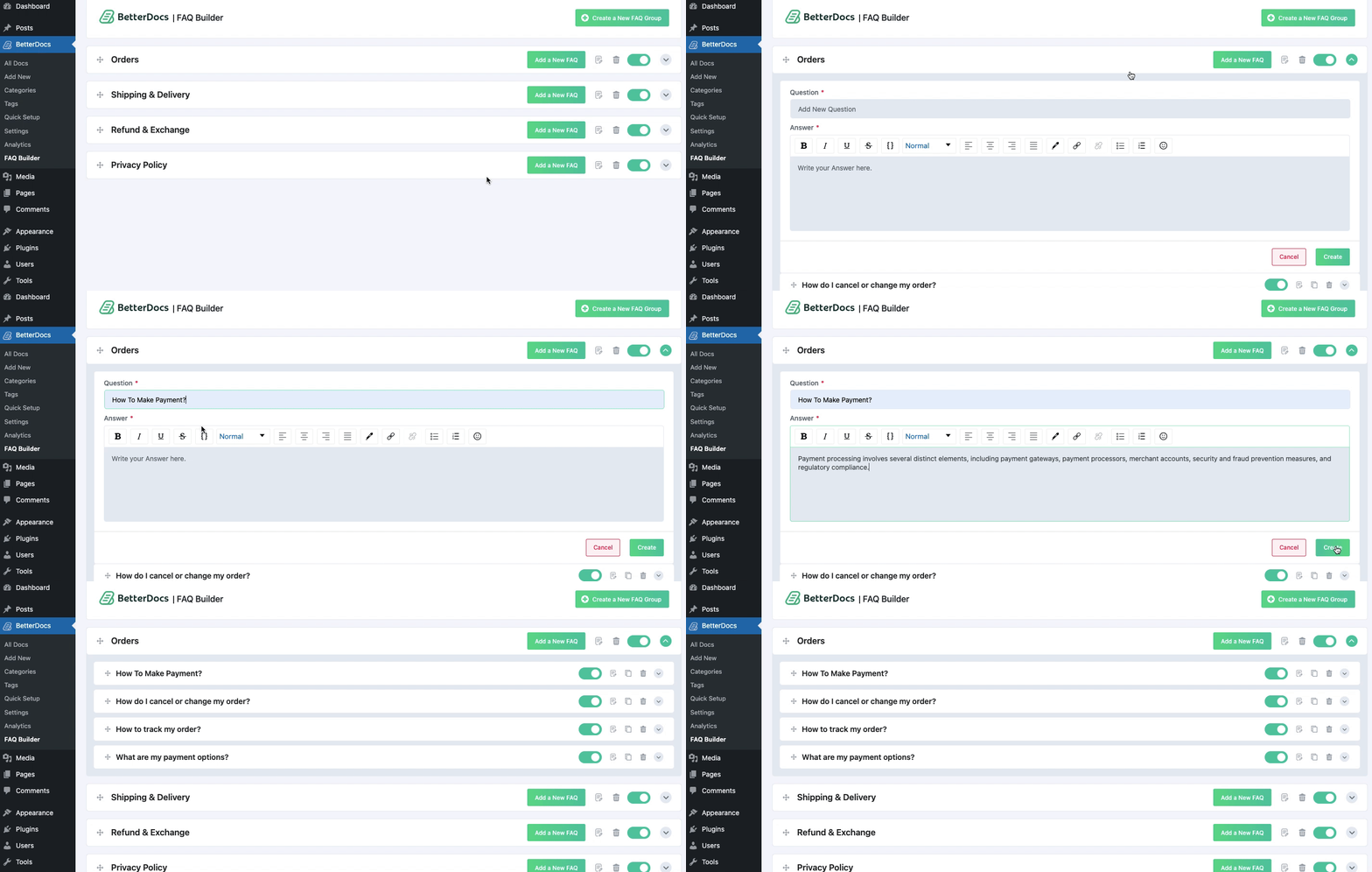
To add New questions, click on the ‘Add A New FAQ’ button of a FAQ group where you want to add the New question. Enter the question and the answer in the respective fields.
Step 3: Enable Or Disable FAQ Groups #
You can decide which question or FAQ group you want to show or hide and based on that you can change the configuration. Simply toggle the button of a specific question or group, if you want to hide that from your website posts or pages.

Once you are done configuring the settings it’s time to see How it appears on your documentation page. So, click on the ‘Visit Documentation’ from your website and you will see the newly created FAQ section on your page.

Thus, you can easily configure BetterDocs FAQ Builder in WordPress and create FAQ sections without any hassle.
How To Customize BetterDocs FAQ Builder In WordPress? #
You can customize BetterDocs FAQ Builder easily from the settings panel. Here’s How you can customize your BetterDocs FAQ Builder.
Step 1: Open FAQ From Live Customizer #
From your WordPress dashboard, go to ‘BetterDocs’ → ‘Settings’ → ‘Design’ → Customize BetterDocs. Click on the ‘FAQ‘ tab to customize it.

Step 2: Customize The FAQ Builder #
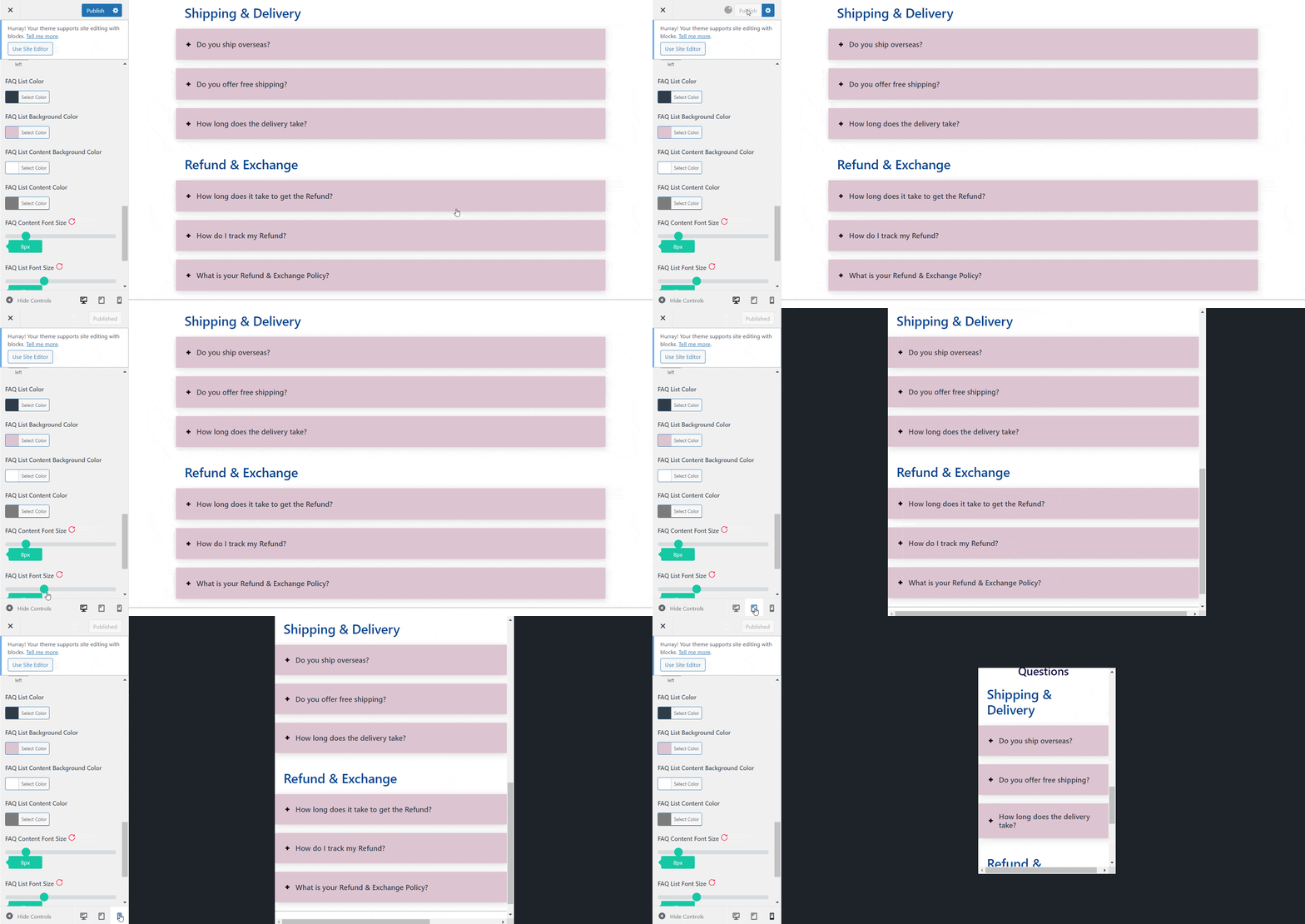
From the FAQ tab, you can choose which FAQ Group to show, select the FAQ Layout, and change the Section Title Text, Section Title Color, Font, Background Color, etc. There are more options that you can explore.

Play around with the customization options to explore and customize it as needed. Change the Font Size, Font Color, and Background Color the way it matches your website.

After all the customizations, your FAQ section is ready to be published. Just click on the ‘Publish’ button and your FAQ will be live!
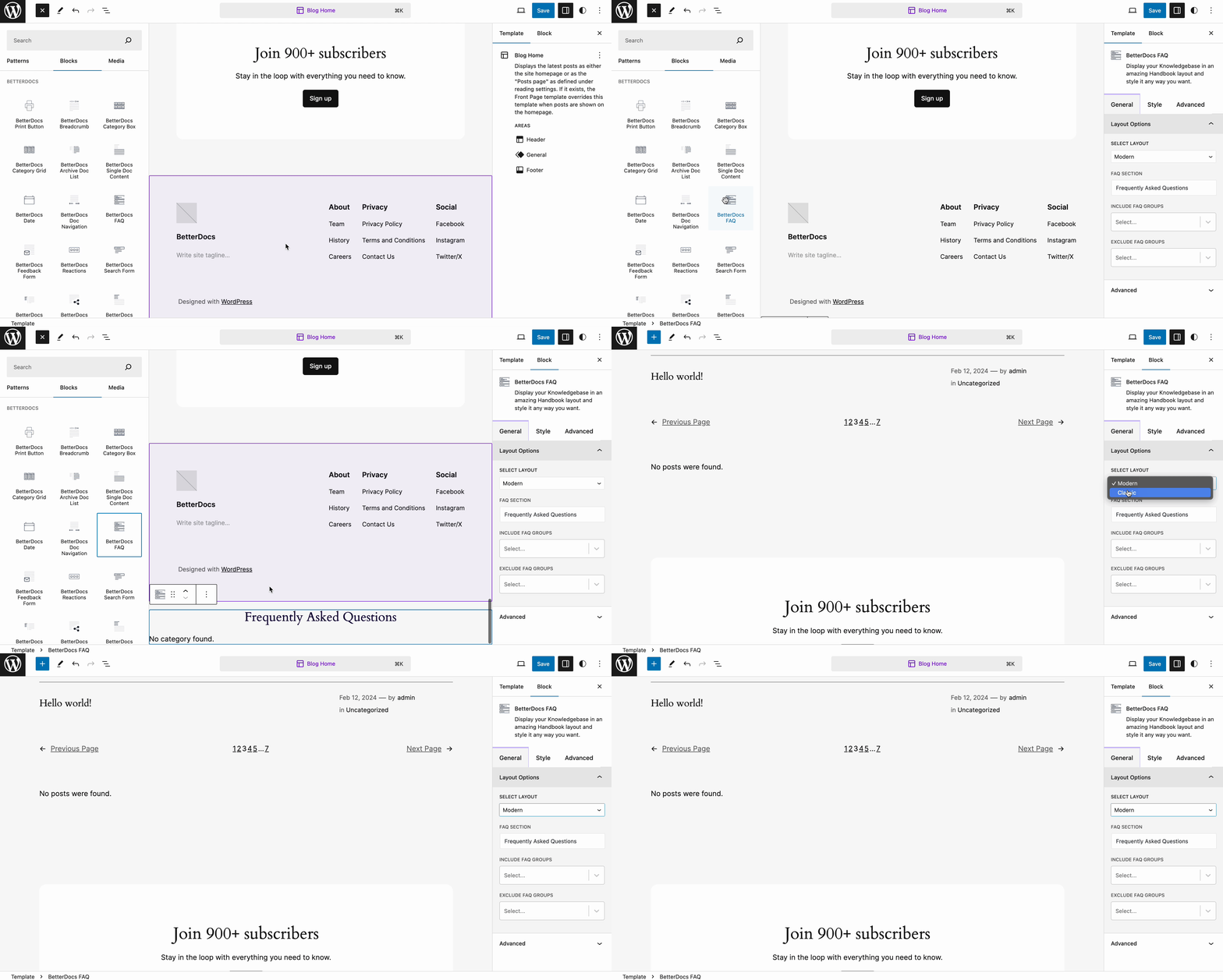
Moreover, BetterDocs provides a Full Site Editor compatible block of FAQ builder feature where you can get different FAQ layouts to choose from (Classic, Modern). It allows you to make changes to the FAQ design and layout as per your preference. You can now choose different FAQ designs directly using BetterDocs compatibility for the WordPress full site editor.
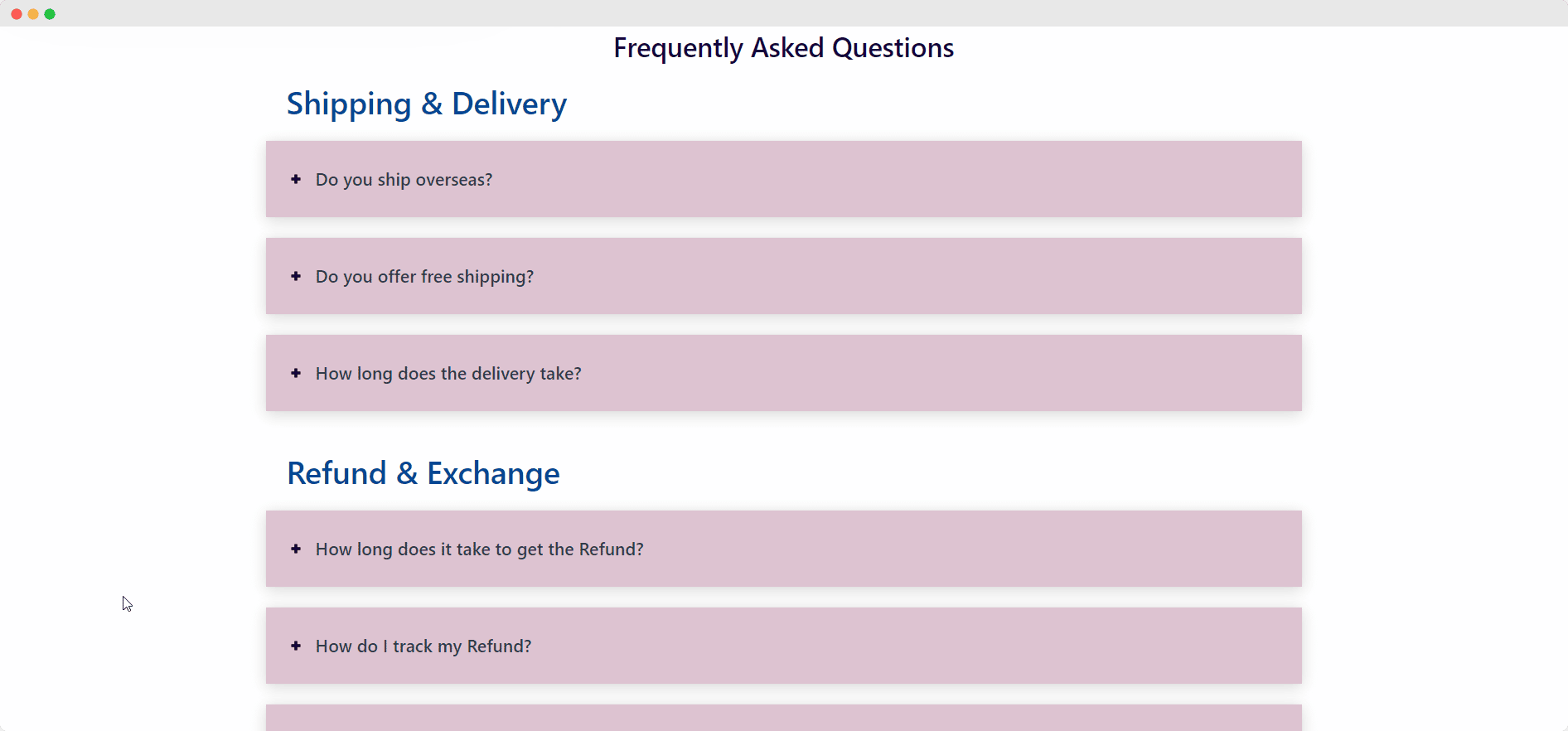
Final Outcome #
Let’s have a look at How your newly customized FAQ section looks on your website’s documentation page.
Getting Stuck? Feel free to contact our dedicated support Team for any further assistance.
BetterDocs has a unique FAQ builder feature that allows you to easily add a FAQ section to your website’s documentation pages. To learn How to configure the FAQ builder in WordPress using BetterDocs, follow the guidelines.
How To Configure BetterDocs FAQ Builder In WordPress? #
Follow the steps below to create FAQs in WordPress using BetterDocs.
Step 1: Create New FAQ Groups #
Go to BetterDocs → FAQ Builder. Here you will see two options. To add a pre-built FAQ, click on the ‘Generate Sample FAQs’ button. A New section with three New FAQ groups will appear.
If you want to create a New FAQ group, click on the ‘Create A New FAQ’ button. Give the New group a suitable name you prefer in the ‘FAQ Group Title’ field and hit the ‘Create FAQ Group’ button. A New FAQ group will be added.
Each group contains a specific set of questions. You can add New questions to the specific group as many as needed.
To add New questions, click on the ‘Add A New FAQ’ button of a FAQ group where you want to add the New question. Enter the question and the answer in the respective fields.
Step 3: Enable Or Disable FAQ Groups #
You can decide which question or FAQ group you want to show or hide and based on that you can change the configuration. Simply toggle the button of a specific question or group, if you want to hide that from your website posts or pages.
Once you are done configuring the settings it’s time to see How it appears on your documentation page. So, click on the ‘Visit Documentation’ from your website and you will see the newly created FAQ section on your page.
Thus, you can easily configure BetterDocs FAQ Builder in WordPress and create FAQ sections without any hassle.
How To Customize BetterDocs FAQ Builder In WordPress? #
You can customize BetterDocs FAQ Builder easily from the settings panel. Here’s How you can customize your BetterDocs FAQ Builder.
Step 1: Open FAQ From Live Customizer #
From your WordPress dashboard, go to ‘BetterDocs’ → ‘Settings’ → ‘Design’ → Customize BetterDocs. Click on the ‘FAQ‘ tab to customize it.
Step 2: Customize The FAQ Builder #
From the FAQ tab, you can choose which FAQ Group to show, select the FAQ Layout, and change the Section Title Text, Section Title Color, Font, Background Color, etc. There are more options that you can explore.
Play around with the customization options to explore and customize it as needed. Change the Font Size, Font Color, and Background Color the way it matches your website.
After all the customizations, your FAQ section is ready to be published. Just click on the ‘Publish’ button and your FAQ will be live!
Moreover, BetterDocs provides a Full Site Editor compatible block of FAQ builder feature where you can get different FAQ layouts to choose from (Classic, Modern). It allows you to make changes to the FAQ design and layout as per your preference. You can now choose different FAQ designs directly using BetterDocs compatibility for the WordPress full site editor.
Final Outcome #
Let’s have a look at How your newly customized FAQ section looks on your website’s documentation page.
Getting Stuck? Feel free to contact our dedicated support Team for any further assistance.BetterDocs has a unique FAQ builder feature that allows you to easily add a FAQ section to your website’s documentation pages. To learn How to configure the FAQ builder in WordPress using BetterDocs, follow the guidelines.
How To Configure BetterDocs FAQ Builder In WordPress? #
Follow the steps below to create FAQs in WordPress using BetterDocs.
Step 1: Create New FAQ Groups #
Go to BetterDocs → FAQ Builder. Here you will see two options. To add a pre-built FAQ, click on the ‘Generate Sample FAQs’ button. A New section with three New FAQ groups will appear.
If you want to create a New FAQ group, click on the ‘Create A New FAQ’ button. Give the New group a suitable name you prefer in the ‘FAQ Group Title’ field and hit the ‘Create FAQ Group’ button. A New FAQ group will be added.
Each group contains a specific set of questions. You can add New questions to the specific group as many as needed.
To add New questions, click on the ‘Add A New FAQ’ button of a FAQ group where you want to add the New question. Enter the question and the answer in the respective fields.
Step 3: Enable Or Disable FAQ Groups #
You can decide which question or FAQ group you want to show or hide and based on that you can change the configuration. Simply toggle the button of a specific question or group, if you want to hide that from your website posts or pages.
Once you are done configuring the settings it’s time to see How it appears on your documentation page. So, click on the ‘Visit Documentation’ from your website and you will see the newly created FAQ section on your page.
Thus, you can easily configure BetterDocs FAQ Builder in WordPress and create FAQ sections without any hassle.
How To Customize BetterDocs FAQ Builder In WordPress? #
You can customize BetterDocs FAQ Builder easily from the settings panel. Here’s How you can customize your BetterDocs FAQ Builder.
Step 1: Open FAQ From Live Customizer #
From your WordPress dashboard, go to ‘BetterDocs’ → ‘Settings’ → ‘Design’ → Customize BetterDocs. Click on the ‘FAQ‘ tab to customize it.
Step 2: Customize The FAQ Builder #
From the FAQ tab, you can choose which FAQ Group to show, select the FAQ Layout, and change the Section Title Text, Section Title Color, Font, Background Color, etc. There are more options that you can explore.
Play around with the customization options to explore and customize it as needed. Change the Font Size, Font Color, and Background Color the way it matches your website.
After all the customizations, your FAQ section is ready to be published. Just click on the ‘Publish’ button and your FAQ will be live!
Moreover, BetterDocs provides a Full Site Editor compatible block of FAQ builder feature where you can get different FAQ layouts to choose from (Classic, Modern). It allows you to make changes to the FAQ design and layout as per your preference. You can now choose different FAQ designs directly using BetterDocs compatibility for the WordPress full site editor.
Final Outcome #
Let’s have a look at How your newly customized FAQ section looks on your website’s documentation page.
Getting Stuck? Feel free to contact our dedicated support Team for any further assistance.
BetterDocs has a unique FAQ builder feature that allows you to easily add a FAQ section to your website’s documentation pages. To learn How to configure the FAQ builder in WordPress using BetterDocs, follow the guidelines.
How To Configure BetterDocs FAQ Builder In WordPress? #
Follow the steps below to create FAQs in WordPress using BetterDocs.
Step 1: Create New FAQ Groups #
Go to BetterDocs → FAQ Builder. Here you will see two options. To add a pre-built FAQ, click on the ‘Generate Sample FAQs’ button. A New section with three New FAQ groups will appear.
If you want to create a New FAQ group, click on the ‘Create A New FAQ’ button. Give the New group a suitable name you prefer in the ‘FAQ Group Title’ field and hit the ‘Create FAQ Group’ button. A New FAQ group will be added.
Each group contains a specific set of questions. You can add New questions to the specific group as many as needed.
To add New questions, click on the ‘Add A New FAQ’ button of a FAQ group where you want to add the New question. Enter the question and the answer in the respective fields.
Step 3: Enable Or Disable FAQ Groups #
You can decide which question or FAQ group you want to show or hide and based on that you can change the configuration. Simply toggle the button of a specific question or group, if you want to hide that from your website posts or pages.
Once you are done configuring the settings it’s time to see How it appears on your documentation page. So, click on the ‘Visit Documentation’ from your website and you will see the newly created FAQ section on your page.
Thus, you can easily configure BetterDocs FAQ Builder in WordPress and create FAQ sections without any hassle.
How To Customize BetterDocs FAQ Builder In WordPress? #
You can customize BetterDocs FAQ Builder easily from the settings panel. Here’s How you can customize your BetterDocs FAQ Builder.
Step 1: Open FAQ From Live Customizer #
From your WordPress dashboard, go to ‘BetterDocs’ → ‘Settings’ → ‘Design’ → Customize BetterDocs. Click on the ‘FAQ‘ tab to customize it.
Step 2: Customize The FAQ Builder #
From the FAQ tab, you can choose which FAQ Group to show, select the FAQ Layout, and change the Section Title Text, Section Title Color, Font, Background Color, etc. There are more options that you can explore.
Play around with the customization options to explore and customize it as needed. Change the Font Size, Font Color, and Background Color the way it matches your website.
After all the customizations, your FAQ section is ready to be published. Just click on the ‘Publish’ button and your FAQ will be live!
Moreover, BetterDocs provides a Full Site Editor compatible block of FAQ builder feature where you can get different FAQ layouts to choose from (Classic, Modern). It allows you to make changes to the FAQ design and layout as per your preference. You can now choose different FAQ designs directly using BetterDocs compatibility for the WordPress full site editor.
Final Outcome #
Let’s have a look at How your newly customized FAQ section looks on your website’s documentation page.
Getting Stuck? Feel free to contact our dedicated support Team for any further assistance.
BetterDocs has a unique FAQ builder feature that allows you to easily add a FAQ section to your website’s documentation pages. To learn How to configure the FAQ builder in WordPress using BetterDocs, follow the guidelines.
How To Configure BetterDocs FAQ Builder In WordPress? #
Follow the steps below to create FAQs in WordPress using BetterDocs.
Step 1: Create New FAQ Groups #
Go to BetterDocs → FAQ Builder. Here you will see two options. To add a pre-built FAQ, click on the ‘Generate Sample FAQs’ button. A New section with three New FAQ groups will appear.
If you want to create a New FAQ group, click on the ‘Create A New FAQ’ button. Give the New group a suitable name you prefer in the ‘FAQ Group Title’ field and hit the ‘Create FAQ Group’ button. A New FAQ group will be added.
Each group contains a specific set of questions. You can add New questions to the specific group as many as needed.
To add New questions, click on the ‘Add A New FAQ’ button of a FAQ group where you want to add the New question. Enter the question and the answer in the respective fields.
Step 3: Enable Or Disable FAQ Groups #
You can decide which question or FAQ group you want to show or hide and based on that you can change the configuration. Simply toggle the button of a specific question or group, if you want to hide that from your website posts or pages.
Once you are done configuring the settings it’s time to see How it appears on your documentation page. So, click on the ‘Visit Documentation’ from your website and you will see the newly created FAQ section on your page.
Thus, you can easily configure BetterDocs FAQ Builder in WordPress and create FAQ sections without any hassle.
How To Customize BetterDocs FAQ Builder In WordPress? #
You can customize BetterDocs FAQ Builder easily from the settings panel. Here’s How you can customize your BetterDocs FAQ Builder.
Step 1: Open FAQ From Live Customizer #
From your WordPress dashboard, go to ‘BetterDocs’ → ‘Settings’ → ‘Design’ → Customize BetterDocs. Click on the ‘FAQ‘ tab to customize it.
Step 2: Customize The FAQ Builder #
From the FAQ tab, you can choose which FAQ Group to show, select the FAQ Layout, and change the Section Title Text, Section Title Color, Font, Background Color, etc. There are more options that you can explore.
Play around with the customization options to explore and customize it as needed. Change the Font Size, Font Color, and Background Color the way it matches your website.
After all the customizations, your FAQ section is ready to be published. Just click on the ‘Publish’ button and your FAQ will be live!
Moreover, BetterDocs provides a Full Site Editor compatible block of FAQ builder feature where you can get different FAQ layouts to choose from (Classic, Modern). It allows you to make changes to the FAQ design and layout as per your preference. You can now choose different FAQ designs directly using BetterDocs compatibility for the WordPress full site editor.
Final Outcome #
Let’s have a look at How your newly customized FAQ section looks on your website’s documentation page.
Getting Stuck? Feel free to contact our dedicated support Team for any further assistance.